Store Widgets
Store Widgets are the visual parts of the wishlist experience on your Shopify store: buttons, pages, popups, and notifications. You customize each one from Templates → Store Widgets so they match your theme and brand. Install the widgets first using Widget Installation.
Where to find Store Widgets
In the app, go to Templates → Store Widgets (or “Widgets” in the app menu). You’ll see a list of widgets you can customize.
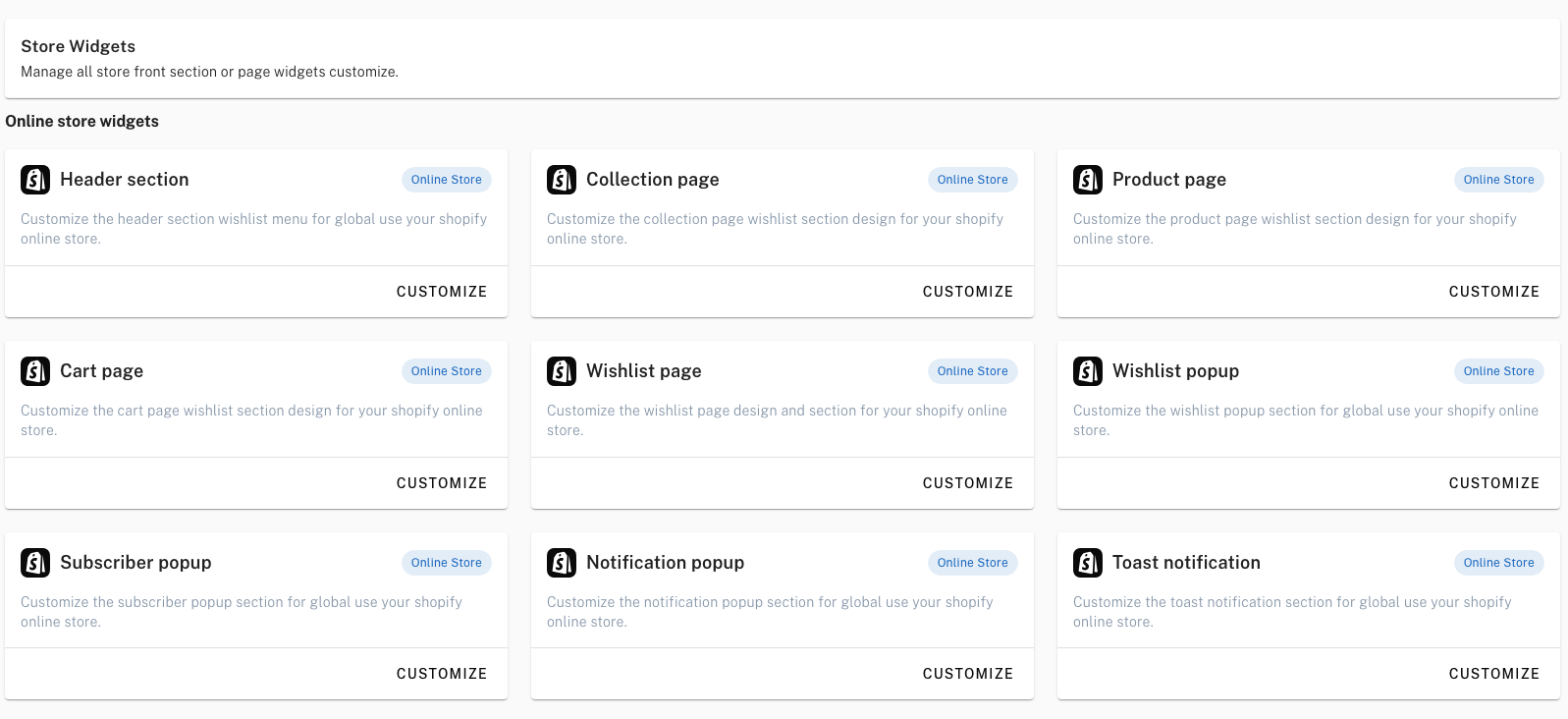
Widgets you can customize
Header section
Global header wishlist link (e.g. “Wishlist” in the main nav or icon in the header). Customize label, icon, and position/look so it fits your theme.
Collection page
Wishlist button or icon on each product card on collection pages. Control style, placement, and text (e.g. “Add to wishlist”).
Product page
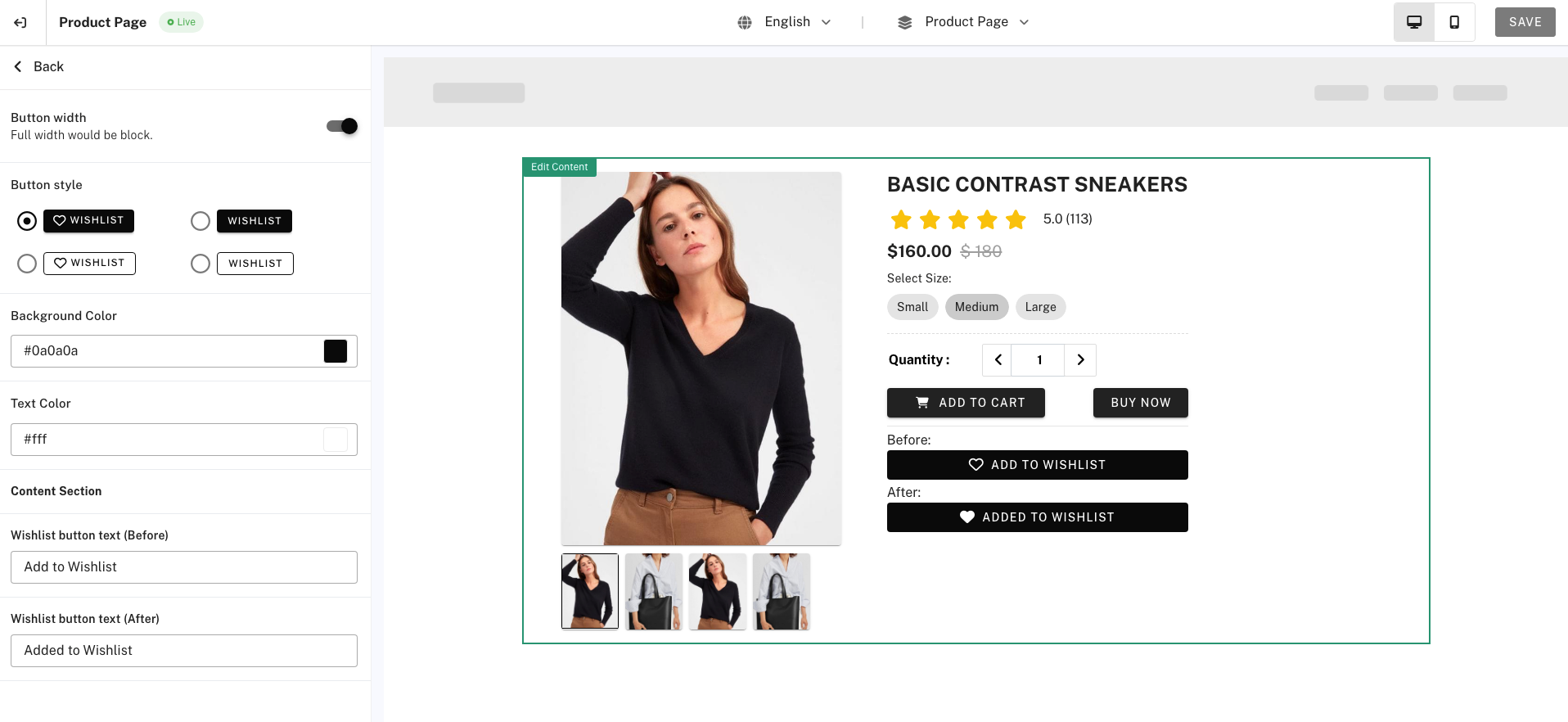
Wishlist button on the product page (near Add to cart). Customize appearance, label, and placement.
Cart page
“Save for later” (or similar) on the cart page so customers can move cart items to the wishlist. Customize label and style.
Wishlist page
The main “My Wishlist” page: layout (grid/list), empty state, move to cart, delete, share, etc. Often the most customizable widget (theme, sidebar, content, popups for add/edit/move/share).
Wishlist popup
Popup that appears when a customer adds a product to the wishlist (e.g. “Added! View wishlist”). Customize message, buttons, and design.
Subscriber popup
Popup or form for visitors to subscribe to wishlist notifications (price drop, back in stock). Availability may depend on your plan (Subscribe wishlist in General Settings).
Notification / Toast
Small toast/snackbar messages (e.g. “Added to wishlist”). Customize position, duration, and style.
How to customize a widget
- Open Templates → Store Widgets.
- Click Customize (or the widget name) on the widget you want to edit.
- Use the editor to change layout, colors, text, and options (e.g. grid vs list, show/hide elements).
- Save. Changes apply to your live store where that widget is used.
Related
For adding the widget code to your theme files, see Widget Installation. For styling beyond the editor, see Custom CSS.