Widget Installation: Online Store 2.0
Use this method if your theme supports Online Store 2.0 (theme app extensions, app blocks). You add Wishlist Lab via the theme editor — no Liquid code. Collection and Cart widgets are not available as app blocks; install those manually (see Manual installation).
1. Install the app and enable the extension
After installing Wishlist Lab from the Shopify App Store, the app’s theme extension is automatically available to your store. You only need to add the blocks to your theme.
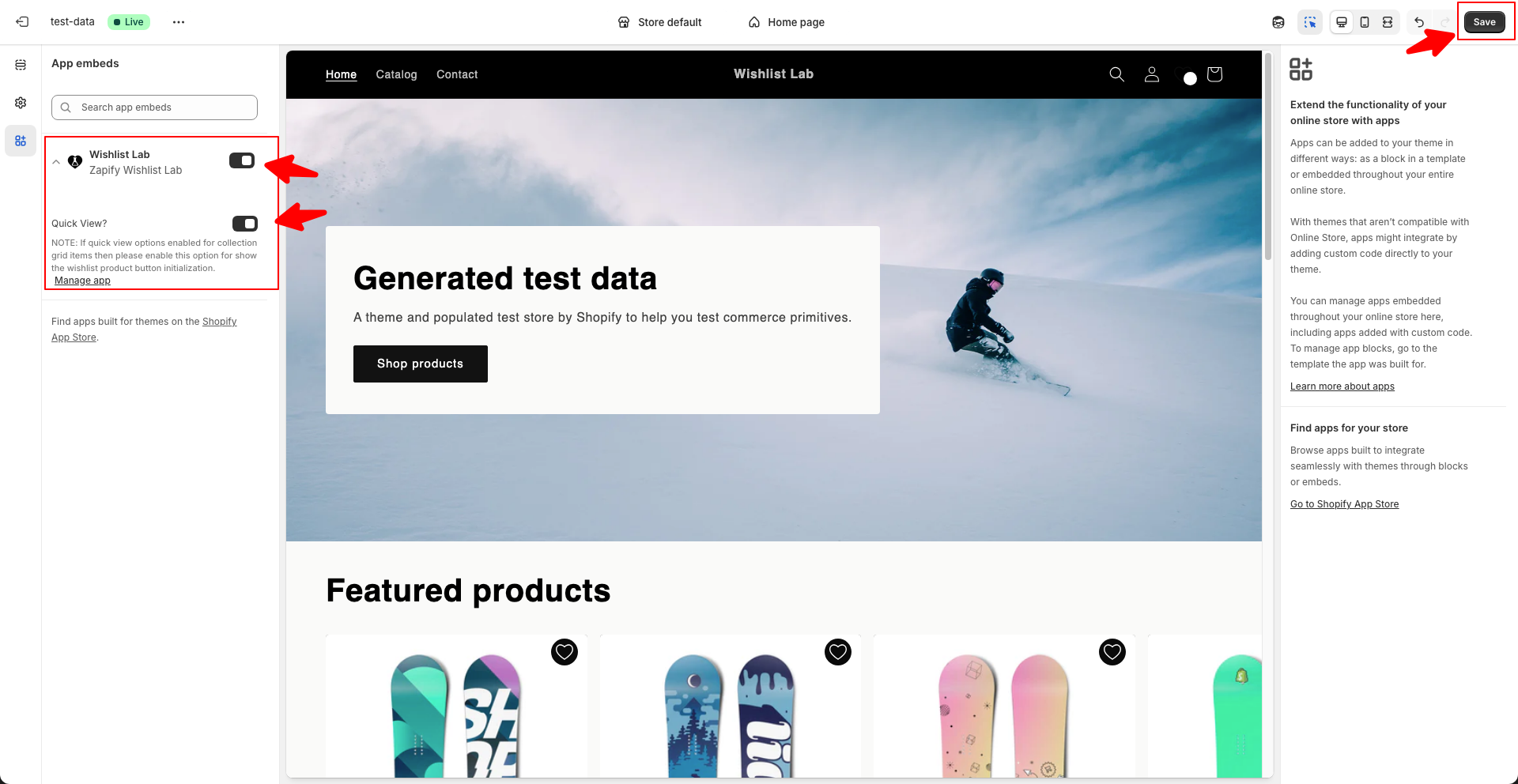
2. Add the main Wishlist Lab app block (theme head)
The main block loads scripts and styles. Add it once to your theme’s head so wishlist functionality works everywhere.
- Go to Online Store → Themes.
- Click Customize on your current theme.
- In the theme editor, open the Theme settings or the default layout (often via the header/footer or “App embeds”).
- Find App embeds (or “Theme app extensions”) and enable Wishlist Lab (or the main “Wishlist Lab” app block that targets the head). Save.
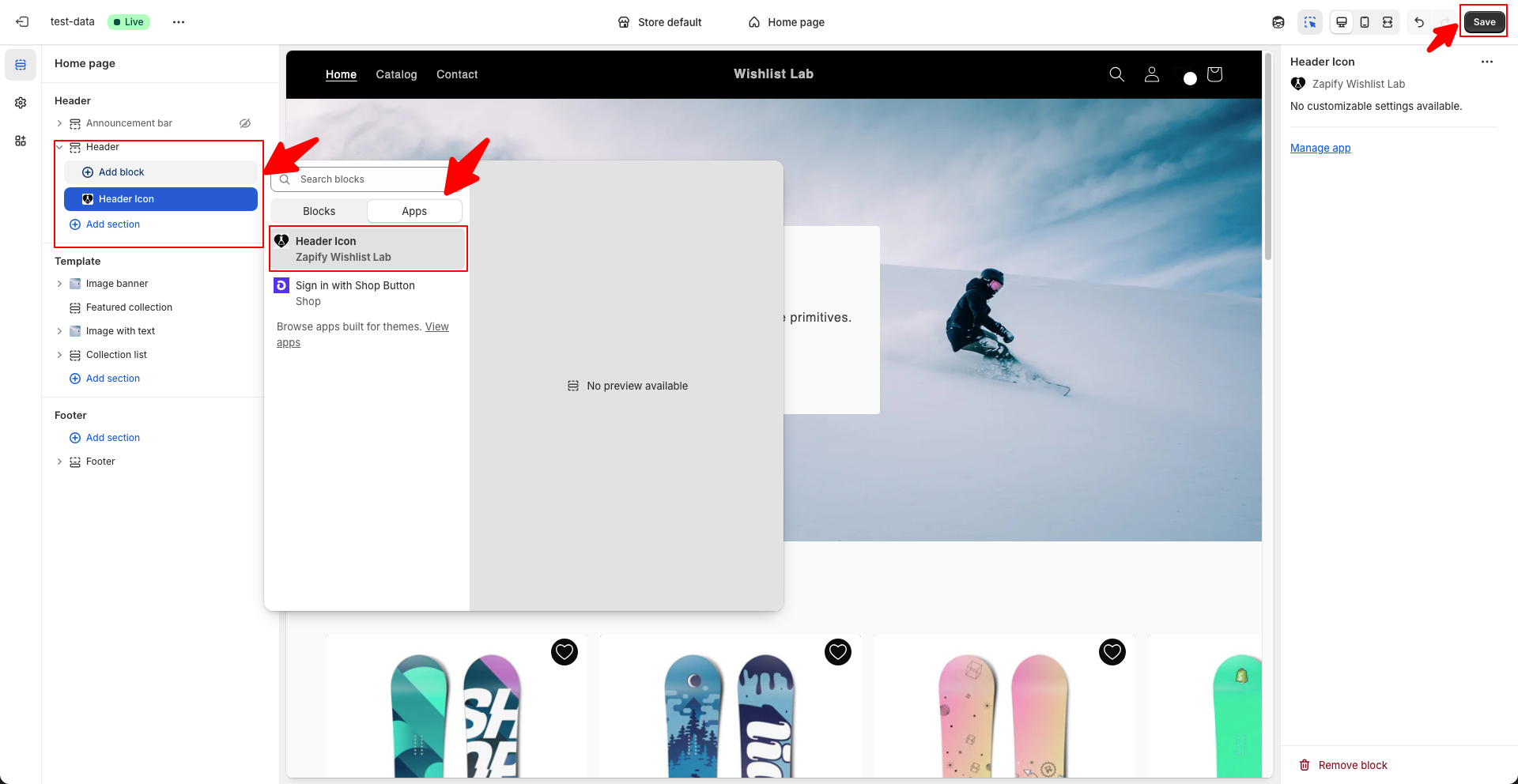
3. Add the Header Icon block
Shows the wishlist icon/link in the header so customers can open their wishlist page.
- In the theme editor, go to the Header section.
- Add a block: choose Apps (or “App block”) and select Wishlist Lab – Header Icon.
- Position it where you want (e.g. next to cart icon). Save.
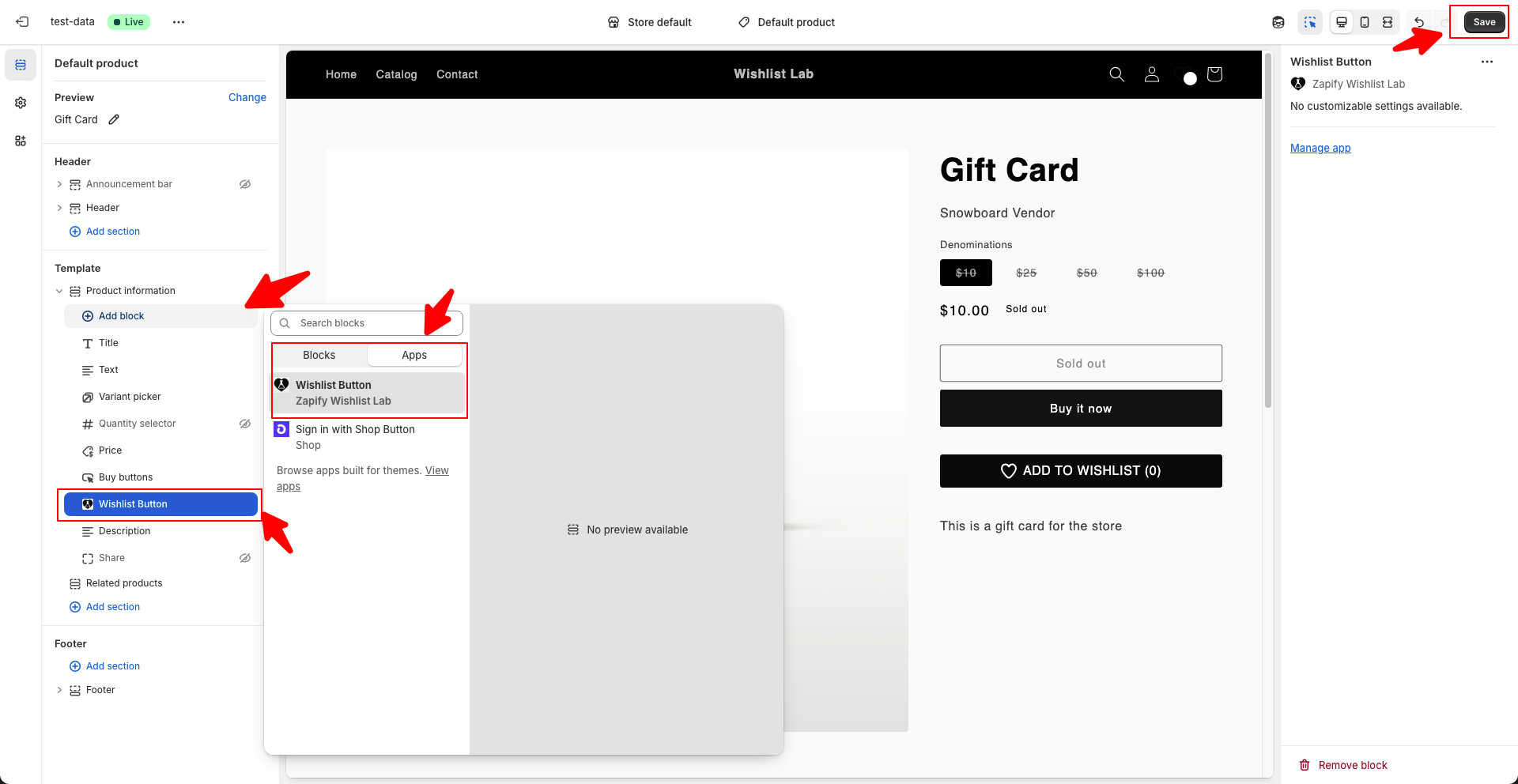
4. Add the Product page wishlist button
Shows the “Add to wishlist” button on the product page.
- In the theme editor, switch to a Product template (e.g. “Default product”).
- In the main product section, click Add block and choose the Wishlist Lab – Wishlist Button app block.
- Place it where you want (e.g. below Add to cart). Save.
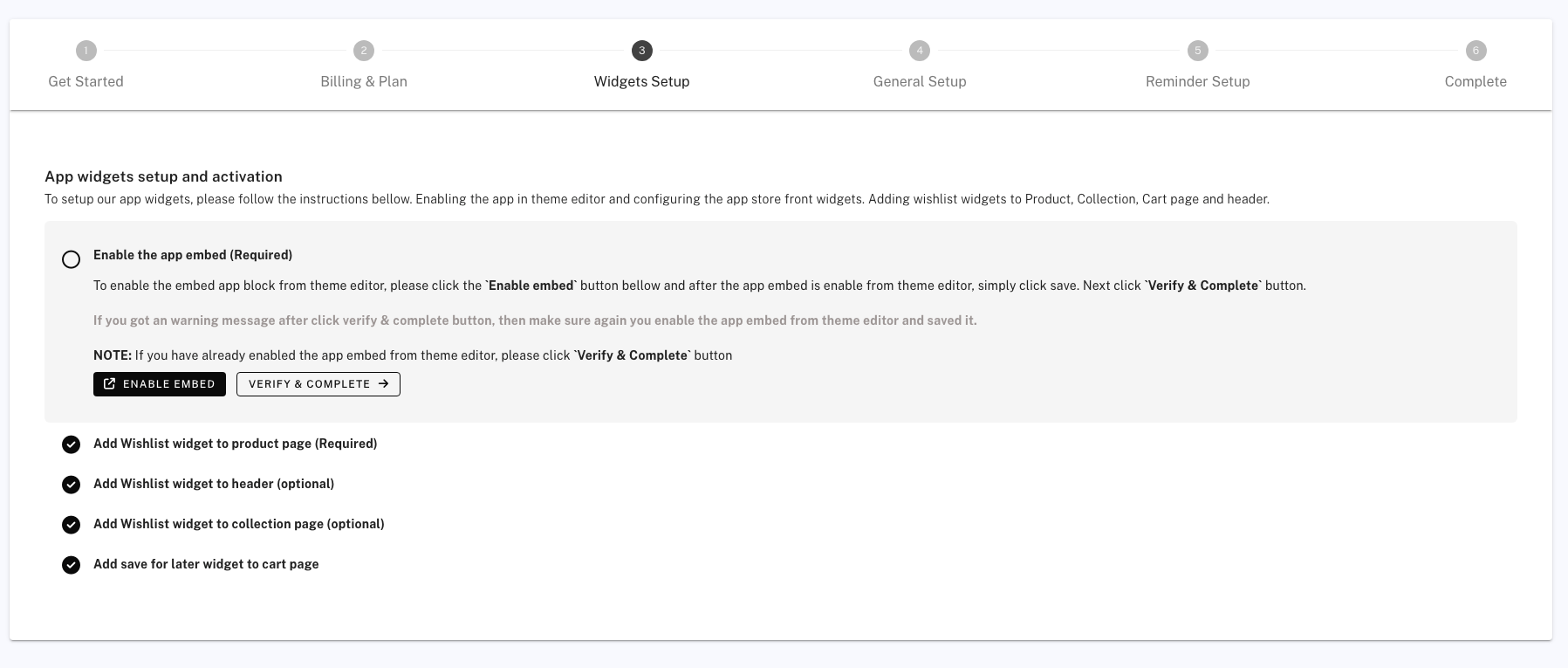
Collection and Cart
The Collection page wishlist button and the Cart page “Save for later” button are not available as app blocks. Add them manually by following Manual installation (Collection page button and Save for later button for cart page).