General Settings
General Settings control whether the app is on and which wishlist features are enabled. Use this page to turn the app on or off and to enable options like guest wishlist, multiple wishlists, and email reminders. Some options depend on your plan.
Where to find General Settings
In the Wishlist Lab app, go to Settings → General (or open General from the main Settings menu).
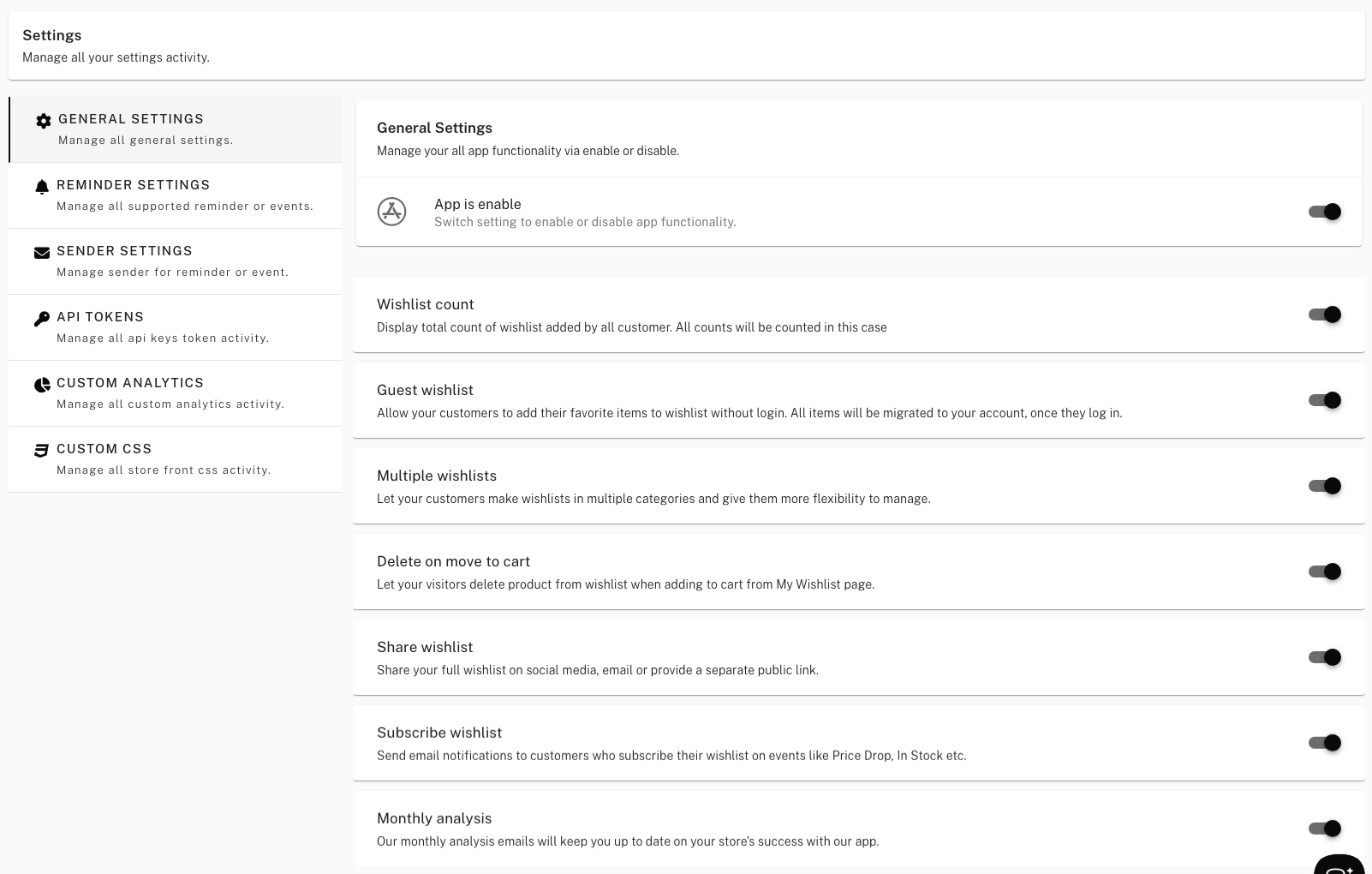
Options explained
App is enable
Master switch for the app. When off, wishlist functionality is disabled on the storefront (buttons, page, reminders, etc.). When on, the app runs, and the options below apply. Leave this on unless you need to temporarily disable the app.

Wishlist count
When enabled, the app can display the total number of times products have been added to wishlists (e.g. “X people want this”). All wishlist adds are counted. Useful for social proof. May require a higher plan.
Guest wishlist
When enabled, visitors can add products to a wishlist without logging in. When they later log in, their guest wishlist items are merged into their account. Good for reducing friction before sign-up.
Multiple wishlists
When enabled, customers can create more than one wishlist (e.g. “Birthday”, “Christmas”) and organize products into them. Gives customers more flexibility. May require a higher plan.
Delete on move to cart
When enabled, moving a product from the wishlist page to the cart can remove it from the wishlist so the wishlist stays in sync with the cart. Reduces clutter on the “My Wishlist” page.
Share wishlist
When enabled, customers can share their wishlist via a link, email, or social media. Useful for gift lists and viral sharing. May require a higher plan.
Subscribe wishlist
When enabled, customers can subscribe to get email notifications for their wishlisted items (e.g. price drop, back in stock). Subscribers are listed under the Subscribers page. Requires reminder/sender setup. May require a higher plan.
Monthly analysis
When enabled, you receive monthly summary emails about your store’s performance with the app (e.g. revenue, orders, reminders sent). Keeps you updated without logging in. May require a higher plan.
Saving your changes
After changing any option, click Save Changes at the top or bottom of the page. If an option is grayed out or shows “Upgrade plan”, it’s not included in your current plan.
Related
For which reminder events are sent, see Reminder Settings. For email delivery and branding, see Sender Settings.